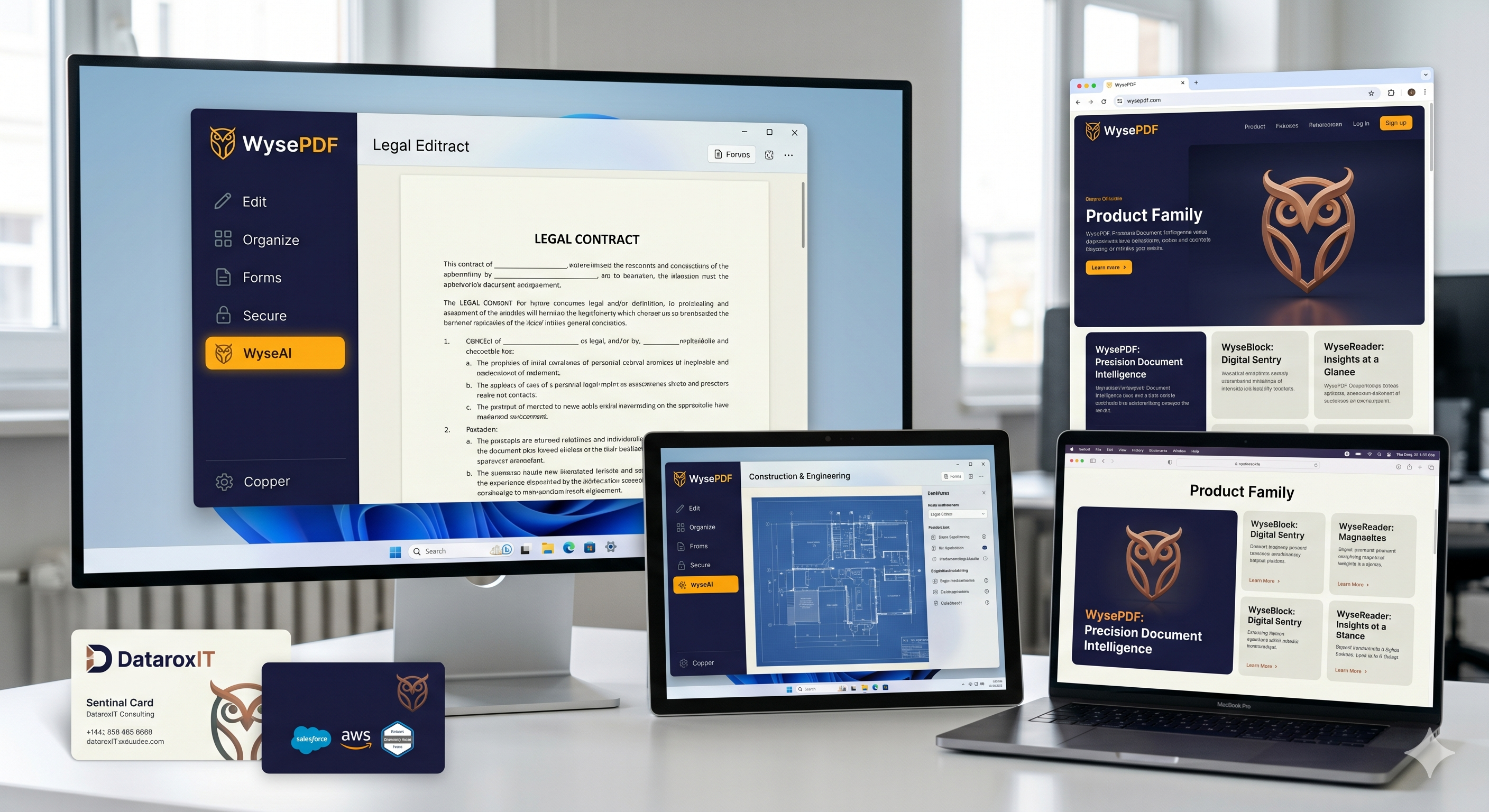
Open and display PDFs
Open any standard PDF with high-fidelity rendering that preserves the original layout, fonts, and images. Supports multiple documents in separate tabs.
Desktop PDF Editor for Windows
WysePDF covers 90% of what you actually do with PDFs — viewing, annotating, organizing, filling forms, OCR, and more — without the complexity or subscription cost.
Combine two or more PDF files into a single document. Preserves page dimensions, content, and annotations. Handles password-protected source files.
Extract a specific page range into a new document. Split by every N pages into multiple files. Preserves all content and annotations.
Drag and drop thumbnails to rearrange page order within a document.
Remove one or more selected pages. Prevents deleting all pages — at least one must remain.
Rotate selected pages by 90, 180, or 270 degrees clockwise.
Add blank pages at any position. Choose from standard sizes (Letter, A4, Legal) or enter custom dimensions.
Insert an image file (PNG, JPEG, BMP, TIFF) as a new PDF page at any position, scaled to fit the page dimensions.
Add editable text boxes anywhere on a page. Configure font family, size, color, and background. Resize and reposition by dragging.
Draw rectangles, ellipses, lines, and arrows. Configure stroke color, width, and fill color. Move, resize, or delete after placement.
Highlight selected text with a semi-transparent color overlay. Choose from yellow, green, blue, pink, or orange.
Place sticky note icons at any location. Click to open a text popup for comments. Collapse to icon when closed. Drag to reposition.
Place a signature image on any page. Upload a signature image or draw one with mouse/stylus. Save signatures for reuse across documents.
Select a region to cover with a white rectangle, then type replacement text over it. A practical approach used by most lightweight PDF editors.
Configure font family, size, and color of replacement text to match the surrounding content.
Resize the white rectangle to precisely cover the target content.
Overlay edits remain editable objects until the document is saved, at which point they are flattened into the page content.
Detects interactive form fields (text inputs, checkboxes, radio buttons, dropdowns) when opening a PDF with AcroForm data.
Click and type in text input fields.
Click to check or uncheck checkbox fields.
Click to select radio button options.
Choose from dropdown option lists.
Clear all filled values and reset the form to its original empty state.
Filled form data is saved when the document is saved.
Run OCR on image-based PDF pages to extract text using the Tesseract engine.
Generates a hidden text layer positioned over recognized text regions, making scanned pages searchable and selectable without altering the visual appearance.
Supports English text recognition. Additional languages can be added via Tesseract language data files.
Displays current page and total page count during processing.
If OCR fails on a specific page, it skips that page, continues processing the rest, and reports which pages failed.
After OCR, the document's text search and text selection features work on the processed pages.
Render selected pages as PNG or JPEG image files.
Choose output DPI: 72 (screen), 150 (draft), 300 (print quality), or 600 (high quality).
Export multiple pages at once with sequential file naming (page_001.png, page_002.png, etc.).
Exported images match the on-screen rendering quality.
Compress PDFs by downsampling images and removing redundant data.
Low (minimal quality loss), Medium (balanced), High (maximum compression).
Shows original size, compressed size, and percentage reduction after compression.
All text, annotations, and form data are preserved during compression.
Informs the user when no significant size reduction is achievable.
Encrypt a PDF with a user password (required to open) and optional owner password (controls editing permissions). Supports AES-128 and AES-256 encryption.
Verify the current password and re-encrypt with a new one.
Verify the current password and save the document without encryption.
User password controls opening access, owner password controls editing permissions.
Save changes to the current file or to a new location. Persists all annotations, overlay edits, form field values, and page modifications.
Document tabs show a modified marker (*) when there are unsaved changes. Prompts to save, discard, or cancel when closing.
Reverse or reapply the last 50 actions per document. Supports undo/redo for annotations, overlay edits, page reorder, delete, rotate, and insert.
Remembers the 20 most recently opened files. Displays them on the start screen. Automatically removes entries for files that no longer exist.
Remembers window size, position, and maximized state between sessions.
Opens the native Windows print dialog with the current document.
Print all pages, a specific page range, or just the current page.
Printed output matches the on-screen rendering.
A familiar interface with Home, Edit, Pages, Tools, and View tabs — just like Microsoft Office. No learning curve for Windows users.
Quick access to Open, Save, Save As, Print, Close, and Exit from the File backstage panel.
Save, Undo, and Redo always one click away in the Quick Access Toolbar at the top of the window.
Full keyboard shortcut support: Ctrl+O (Open), Ctrl+S (Save), Ctrl+Shift+S (Save As), Ctrl+P (Print), Ctrl+Z/Y (Undo/Redo), Ctrl+F (Find), PageUp/Down, Ctrl+Home.
Drop PDF files directly onto the application window to open them instantly.
Reverse or reapply the last 50 actions per document. Supports undo/redo for annotations, overlay edits, page operations, and more.
Download for free and experience precision document editing on Windows.